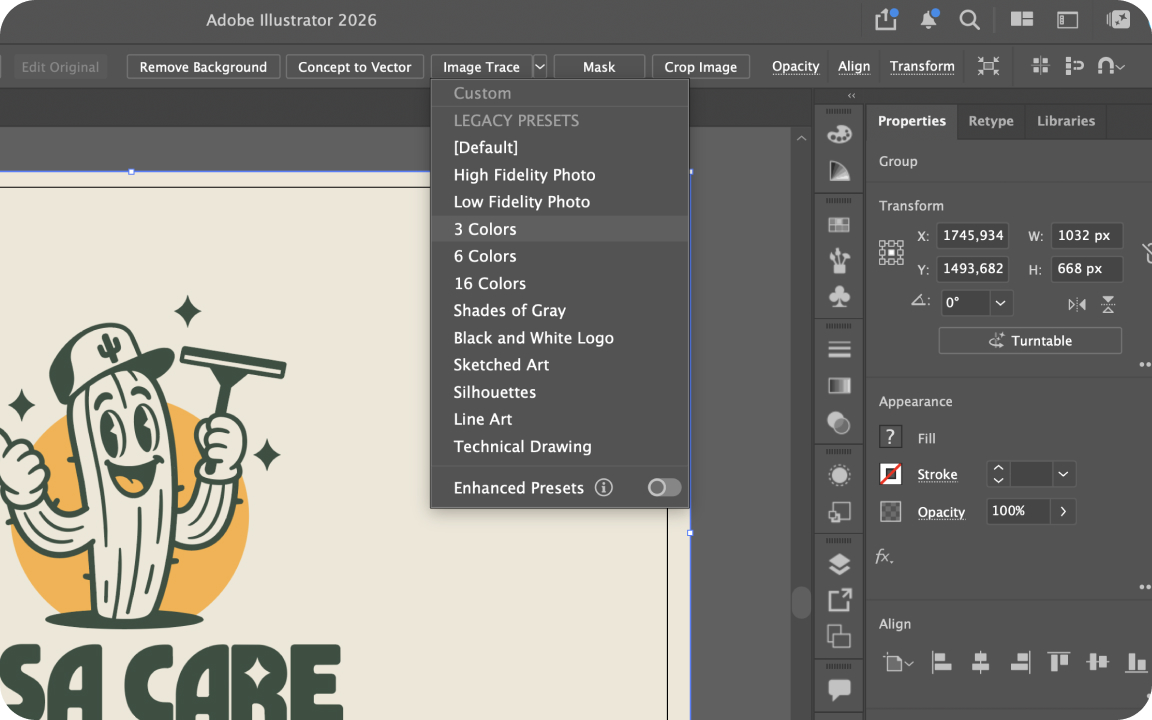
Select your image in Illustrator, open Window > Image Trace, pick a preset (Black and White Logo or 3 or 6 Colors for most logos), turn on Preview, adjust Paths, Corners and Noise, then click Trace and Object > Image Trace > Expand. For blurry or detailed logos, redraw by hand instead.
Image Trace is Adobe Illustrator’s built-in tool for turning a raster image, like a PNG or JPG logo, into editable vector paths. It is fast and free if you already have Illustrator, but the defaults rarely give a clean result. This guide explains every setting, so you know what to change and why.
How to use Image Trace in Illustrator
- Place the image with File > Place and select it.
- Open Window > Image Trace.
- Choose a Preset and tick Preview so you see changes live.
- Adjust the settings below until the shapes look right.
- Click Trace, then go to Object > Image Trace > Expand to turn the result into editable paths.
- Ungroup, delete leftover background shapes and clean up the paths.
Image Trace presets
| Preset | What it does | Use it for |
|---|---|---|
| Black and White Logo | Two colors, smooth shapes | One-color logos, icons and signatures |
| 3 Colors / 6 Colors / 16 Colors | Limits the palette to that many colors | Flat color logos; pick the number closest to your logo |
| Silhouettes | Solid black shapes | Simple shapes and cut files |
| Line Art / Technical Drawing | Traces lines as strokes | Sketches, outlines and drawings |
| Sketched Art | Black fills from hand drawings | Scanned pencil or ink artwork |
| Shades of Gray | Grayscale tones | Black and white illustrations |
| High / Low Fidelity Photo | Many colors, very detailed | Artistic photo effects, not logos |
Main settings
- View switches between the tracing result, outlines and the source image. Use Outlines with Source Image to compare paths with the original.
- Mode is Color, Grayscale or Black and White.
- Palette (Color mode) controls where colors come from: Limited, Full Tone, Automatic or a Document Library, which lets you trace using your exact brand swatches.
- Colors sets how many colors the trace may use. Fewer colors give cleaner shapes.
- Threshold (Black and White mode) decides which pixels become black. Raise it if thin parts disappear, lower it if shapes bleed together.
Advanced settings
| Setting | What it controls | Tip for logos |
|---|---|---|
| Paths | How closely paths follow the pixels | Lower for smoother curves, higher for more detail |
| Corners | How many sharp corners are created | Lower for round logos, higher for geometric ones |
| Noise | Ignores areas smaller than this many pixels | Raise it to remove specks from scans and JPG artifacts |
| Method | Abutting (shapes cut out of each other) or Overlapping (stacked shapes) | Abutting is easier to recolor; Overlapping avoids tiny gaps |
| Fills / Strokes | Create filled shapes, strokes, or both | Fills for most logos, strokes for line art |
| Snap Curves to Lines | Turns slightly curved lines into straight ones | Turn on for geometric logos |
| Ignore White | Drops white areas instead of tracing them | Turn on so you do not get a white box behind the logo |
Best Image Trace settings for logos
Start with these and adjust while Preview is on:
- Preset: Black and White Logo, or 3 Colors or 6 Colors for color logos
- Paths: around 50 to 70%, Corners: around 25 to 50%, Noise: 10 to 25 px for clean files
- Method: Abutting, Fills on, Ignore White on
- Snap Curves to Lines on for geometric marks
From the studio: Image Trace gets a clean, high-contrast logo about 80% of the way. Text and smooth curves are where it fails, so we retype text in the right font and redraw key curves with the Pen tool.
Clean up after tracing
- Expand the trace and ungroup it.
- Use Object > Path > Simplify to reduce anchor points.
- Merge same-color shapes with the Shape Builder tool or Pathfinder.
- Replace traced text with real type, then outline it.
- Check the result in Outline view (Ctrl+Y or Cmd+Y).
When Image Trace does not work
Blurry, small or heavily compressed images, gradients, photos of signs and thin script lettering all trace badly. In those cases redrawing by hand is faster than fixing a messy trace. We compare all methods in how to vectorize a logo.
Related guides
We redraw logos by hand in Illustrator and deliver AI, EPS, SVG, PDF and PNG files.
FAQ
Where is Image Trace in Illustrator?
Select a placed image and open Window > Image Trace, or click Image Trace in the Properties panel.
What are the best Image Trace settings for a logo?
Use Black and White Logo or 3 to 6 Colors, Ignore White on, Method Abutting, and adjust Paths, Corners and Noise with Preview turned on.
Why is my Image Trace result blurry or bumpy?
The source image is too small or compressed. Raise Noise, lower Paths, use a larger source, or redraw the logo by hand.
How do I make Image Trace editable?
Click Object > Image Trace > Expand. The trace becomes normal vector paths you can ungroup and edit.

Founder of SkyDesigner. Fiverr Pro Vetted designer, selling on Fiverr since 2014 with 24,500+ reviews.